
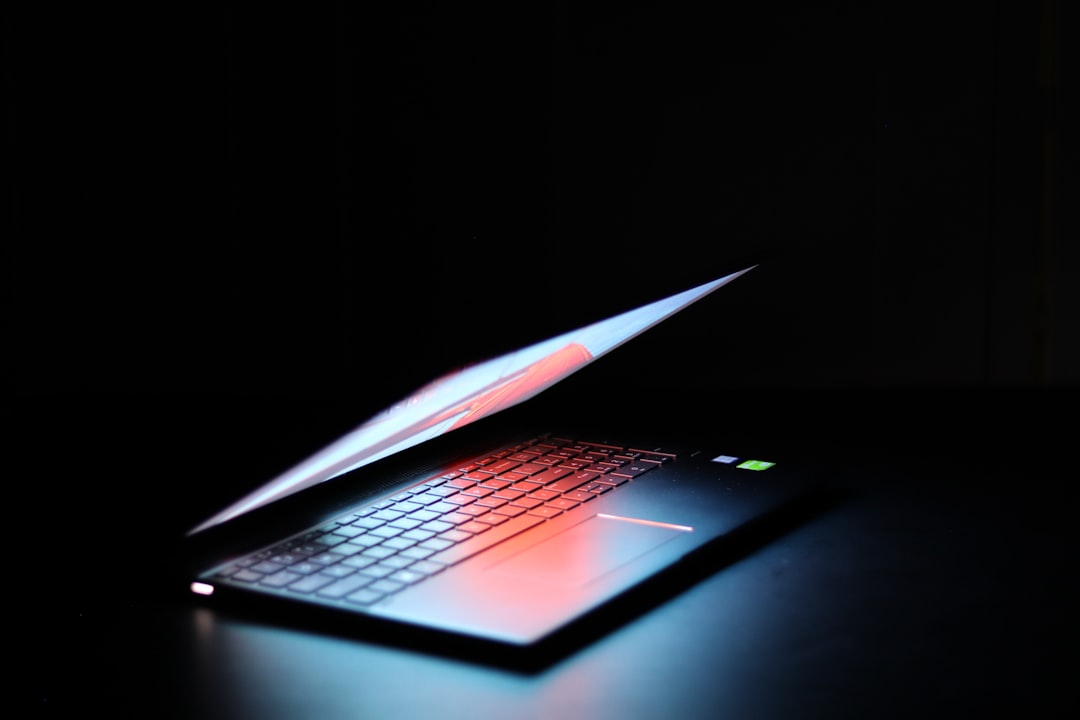
How to Speed Up a Slow Laptop Without Buying a New One
Slow laptops are a frustration, but you don’t always need a new machine. With the right diagnostics and targeted fixes, most performance issues can be resolved in hours rather than weeks.
Below are practical, trustworthy steps—software and hardware—that help reclaim speed, responsiveness and battery life while keeping your data safe. If you prefer browsing components and accessories as you work, check options at PriceHunterPro for relevant peripherals and upgrades.
1. Diagnose what’s actually slowing your laptop
Before changing anything, identify whether the bottleneck is CPU, memory, storage, graphics or thermal throttling. Use built-in tools (Task Manager on Windows, Activity Monitor on macOS) to watch CPU, RAM and disk usage while you reproduce slowness. Note whether a single app spikes usage or whether baseline resources are always high.
2. Free up disk space and tidy your files
Low free disk space—especially on the system drive—slows down virtual memory and file operations. Remove large unused files, empty the recycle bin, uninstall apps you don’t use and move bulky media to an external drive or cloud storage. On Windows, run Disk Cleanup and consider removing temporary files and old Windows installation files.
3. Manage startup apps and background processes
Many apps add themselves to startup and run in the background. Disable nonessential startup entries (Task Manager > Startup on Windows; System Settings > Users & Groups > Login Items on macOS). Also check background services for auto-updaters, chat apps and cloud sync tools that consume CPU and disk I/O.
4. Consider small hardware upgrades first: SSD and RAM
If your laptop still uses a mechanical hard drive, switching to an SSD produces one of the biggest perceptible speed improvements for booting and app loading. Increasing RAM helps if you’re frequently pegging memory limits. These upgrades are cheaper than a new laptop and extend useful life—check compatibility guides for your model before buying parts.
5. Offload light tasks to a secondary device or tablet
If you occasionally need a light, responsive device for browsing, notes or reference work while your main laptop performs heavier tasks, using a tablet can reduce context switching and free laptop resources. A compact tablet such as the TECLAST T65 is a practical option for reading, meetings and light apps while your laptop focuses on demanding tasks.
6. Keep it cool and physically clean
Thermal throttling caused by dust-clogged vents or failing fans makes CPUs and GPUs run slower to avoid overheating. Periodically clean vents with compressed air, ensure intake/exhaust are unobstructed, and use the laptop on a hard flat surface. For general home dust control—especially if pet hair is present—keeping floors and surfaces cleaner reduces dust buildup around your workspace; devices like the roborock Q7 M5 can help maintain a lower-dust environment.
7. Improve workflow with smarter peripherals
Sometimes perceived slowness is workflow friction—slow typing, awkward navigation or an uncomfortable pointing device. A higher-quality keyboard and better mouse let you work faster without increasing laptop load. Consider a compact wireless mechanical keyboard such as the Redragon K521KS for responsive typing and macro shortcuts that reduce repetitive tasks.
For long sessions, an ergonomic mouse reduces strain and improves precision—try a vertical ergonomic mouse like the Transformers Vertical Ergonomic Mouse. Better input devices often yield faster, smoother work even without upgrading the laptop itself.
8. Use an external monitor to spread workload and improve productivity
Adding a larger or secondary monitor can speed up multitasking and reduce the time spent swapping windows. For video editing, spreadsheets or coding, an ultrawide monitor gives more real estate for tools and timelines; consider a high-refresh, large display such as the Samsung 34″ Odyssey G5 if your laptop’s GPU and ports support it.
9. Fix audio and driver problems that cause CPU spikes
Audio drivers or apps can sometimes cause periodic CPU or interrupt activity that feels like system-wide slowness. Update audio drivers, disable unnecessary audio enhancements, and if built-in speakers stutter during calls, use an external speaker or headset which can take load off system audio processing. A reliable external option is the Bluetooth Speaker, 20W for clearer audio during breaks and meetings without taxing laptop processes.
10. Battery and power settings: squeeze more performance
On laptops, power plans affect CPU and GPU limits. Switch from a power-saver profile to a balanced or performance plan when plugged in. Also check battery health—old batteries can cause throttling or sudden power management behavior. If you need extended unplugged work sessions, a useful accessory is a portable charger with built-in cables to keep your device topped up without hunting for the right cable: Portable Charger with built-in cables.
Quick checklist
- Run Task Manager/Activity Monitor to identify heavy processes
- Free at least 15–20% of your system drive space
- Disable nonessential startup apps and background services
- Update OS, drivers and major apps
- Clean vents and fans; use on a hard surface
- Consider SSD or RAM upgrade if budget allows
- Use ergonomic peripherals and external monitor for productivity
- Adjust power profile and check battery health
FAQ
-
Q: Will reinstalling the OS make my laptop faster?
A: A clean OS reinstall removes accumulated software clutter and misconfigurations and often restores responsiveness. Back up data first.
-
Q: Is upgrading to an SSD worth it?
A: Yes. Switching from an HDD to an SSD usually delivers the largest single improvement in boot and app load times.
-
Q: How much RAM do I really need?
A: For general use, 8GB is minimum; 16GB is recommended for multitasking, browser-heavy work, and light creative workloads.
-
Q: My laptop still overheats after cleaning—what then?
A: Check thermal paste on older notebooks, inspect fan operation, and ensure BIOS/firmware are up to date. If needed, consult a technician.
-
Q: Do external monitors or peripherals slow down my laptop?
A: They can if the GPU or USB bandwidth is saturated. Use appropriate ports (DisplayPort/HDMI/USB-C) and check your laptop’s capability.
Conclusion — practical takeaway
Start with diagnostics, free up storage, and disable unnecessary startup apps. Clean and cool the machine, consider SSD/RAM upgrades where possible, and improve workflow with sensible peripherals and an external monitor. Many of these steps are low-cost, quick to implement, and together can transform a slow laptop into a responsive daily driver without buying a new one.
Products Featured in This Article

Bluetooth Speaker, 20W HD Sound, Po…
Product description The video showcases the product in use.The video guides you through product setup.The video…

TECLAST T65 13.4″ Android16 4…
From the brand TECLAST BRAND STORE Providing a pleasant user experience for customers is our main…
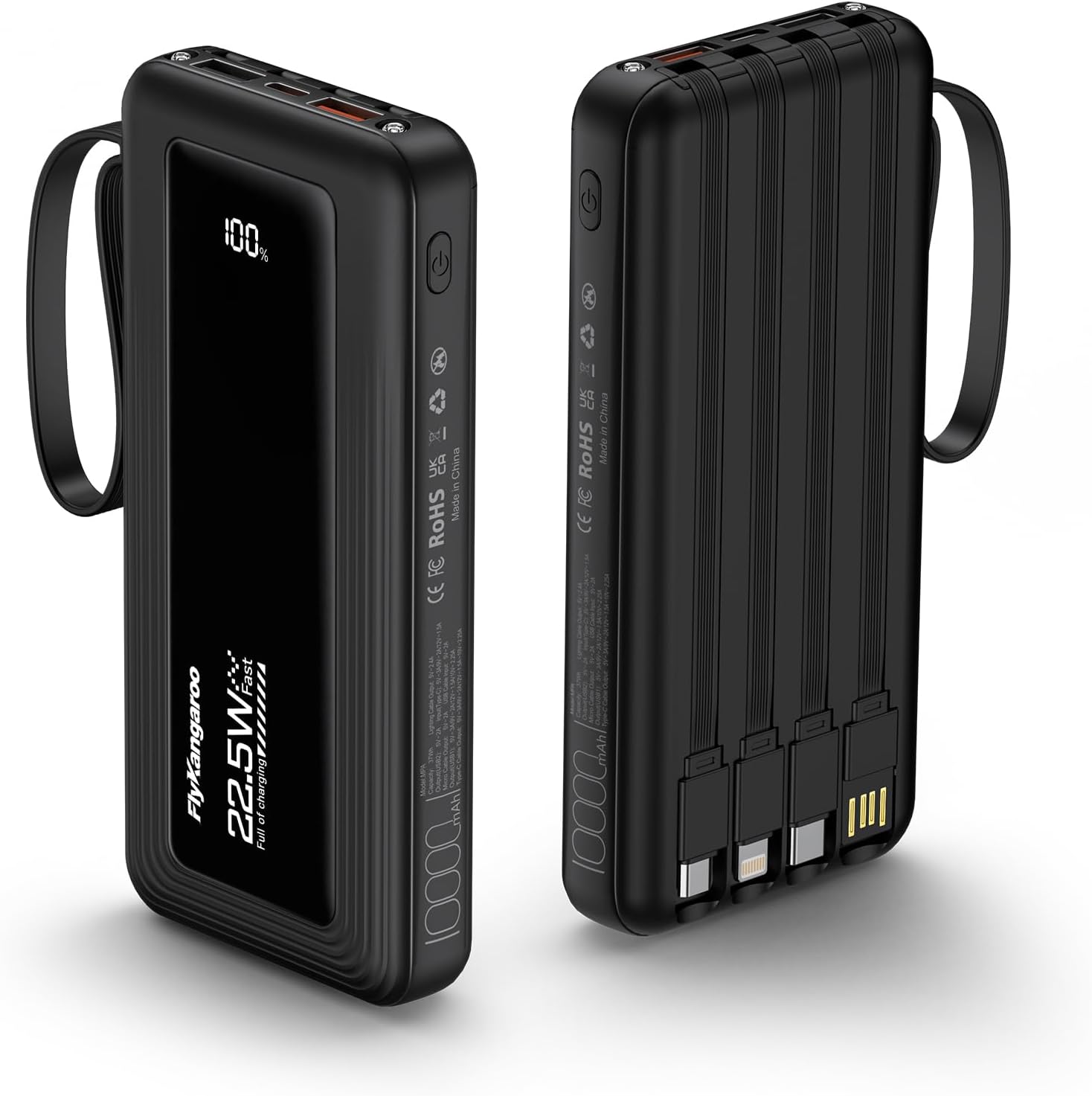
Portable Charger with Built in Cabl…
From the brand 22.5W Fast Charging Compact and Portable Built in Cables Portable Charger with Built-in…
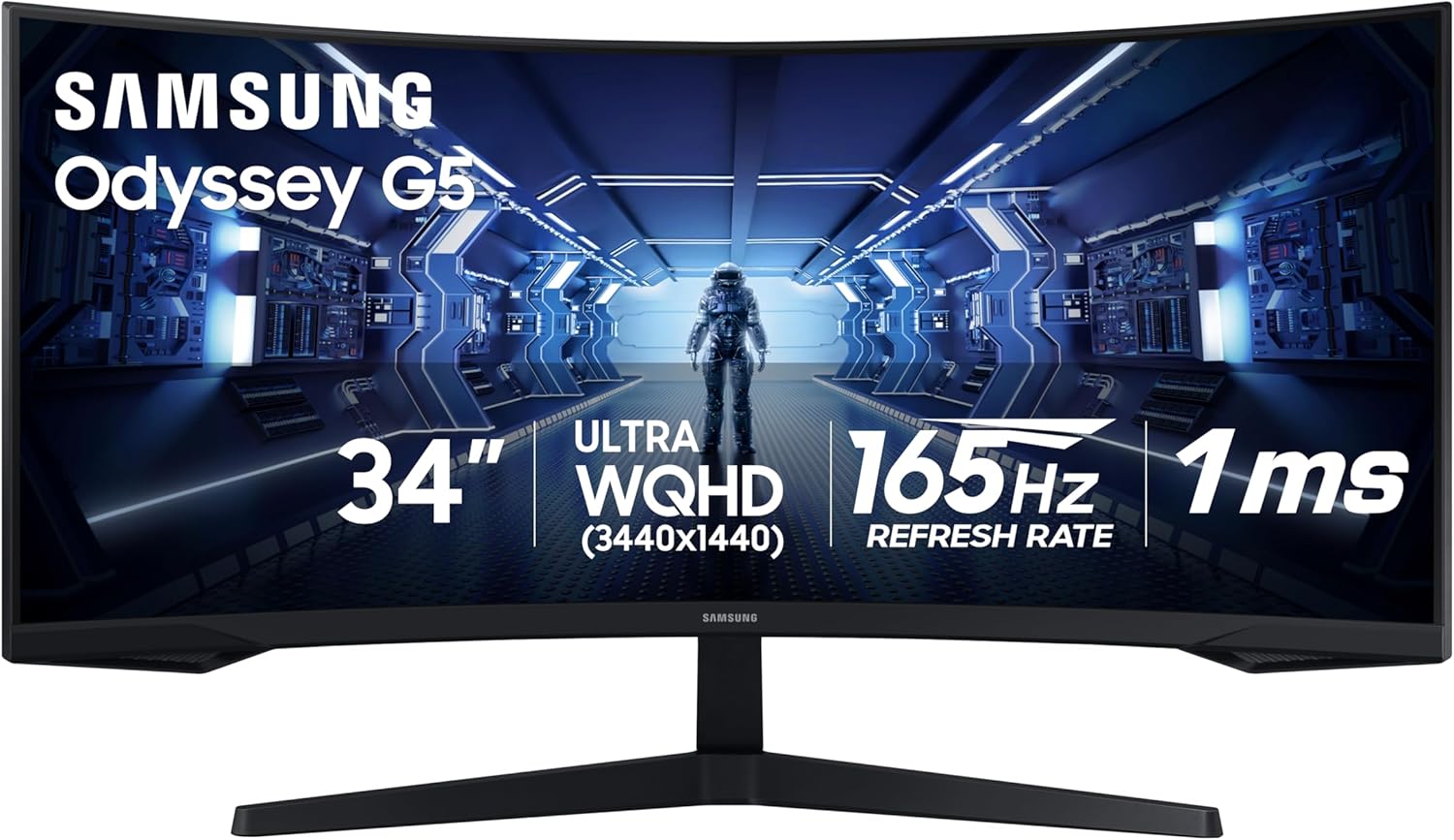
Samsung 34′ Odyssey G5 Ultra-…
The all-encompassing 1000R display fills every part of your peripheral vision and draws you right into…
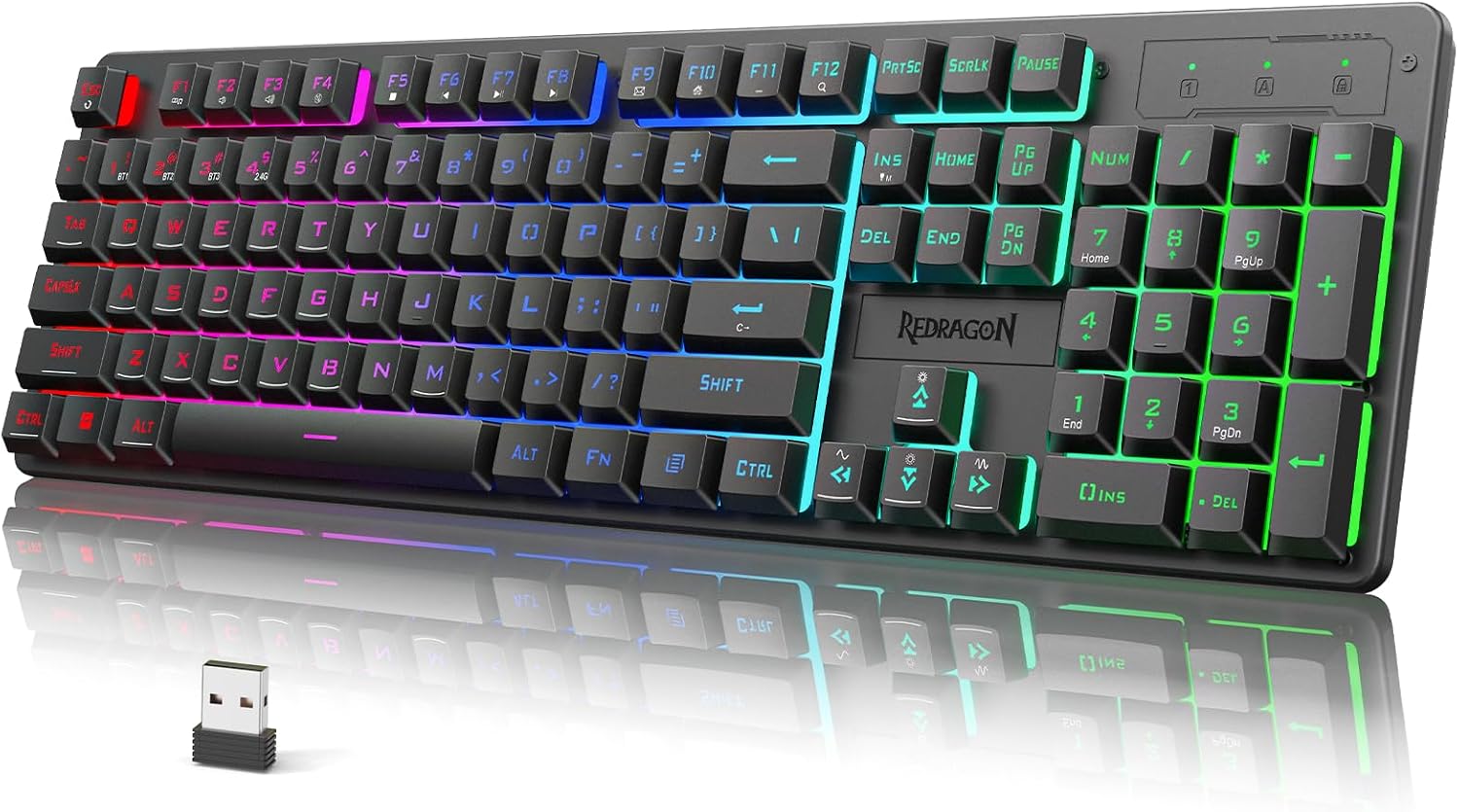
Redragon K521KS Wireless Gaming Key…
Product description 【Tri-Mode Connection & 4000 mAh Battery】The K521KS red dragon keyboard supports Bluetooth, 2.4GHz wireless,…
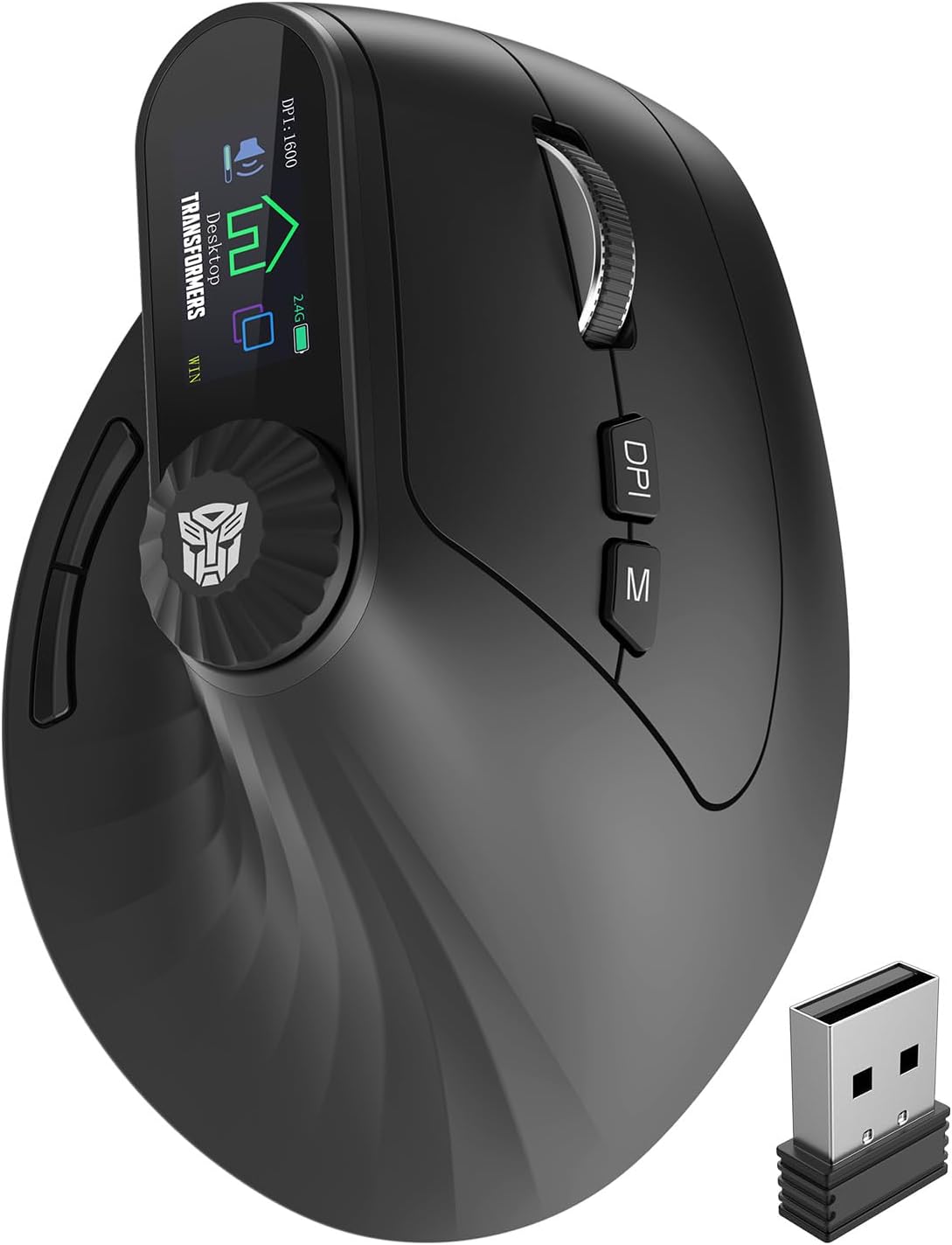
Transformers Vertical Ergonomic Mou…
Product description Transformers Ergonomic Rechargeable Mouse with LED Screen 3-Device Connectivity: 2.4 GHz + Dual Bluetooth…
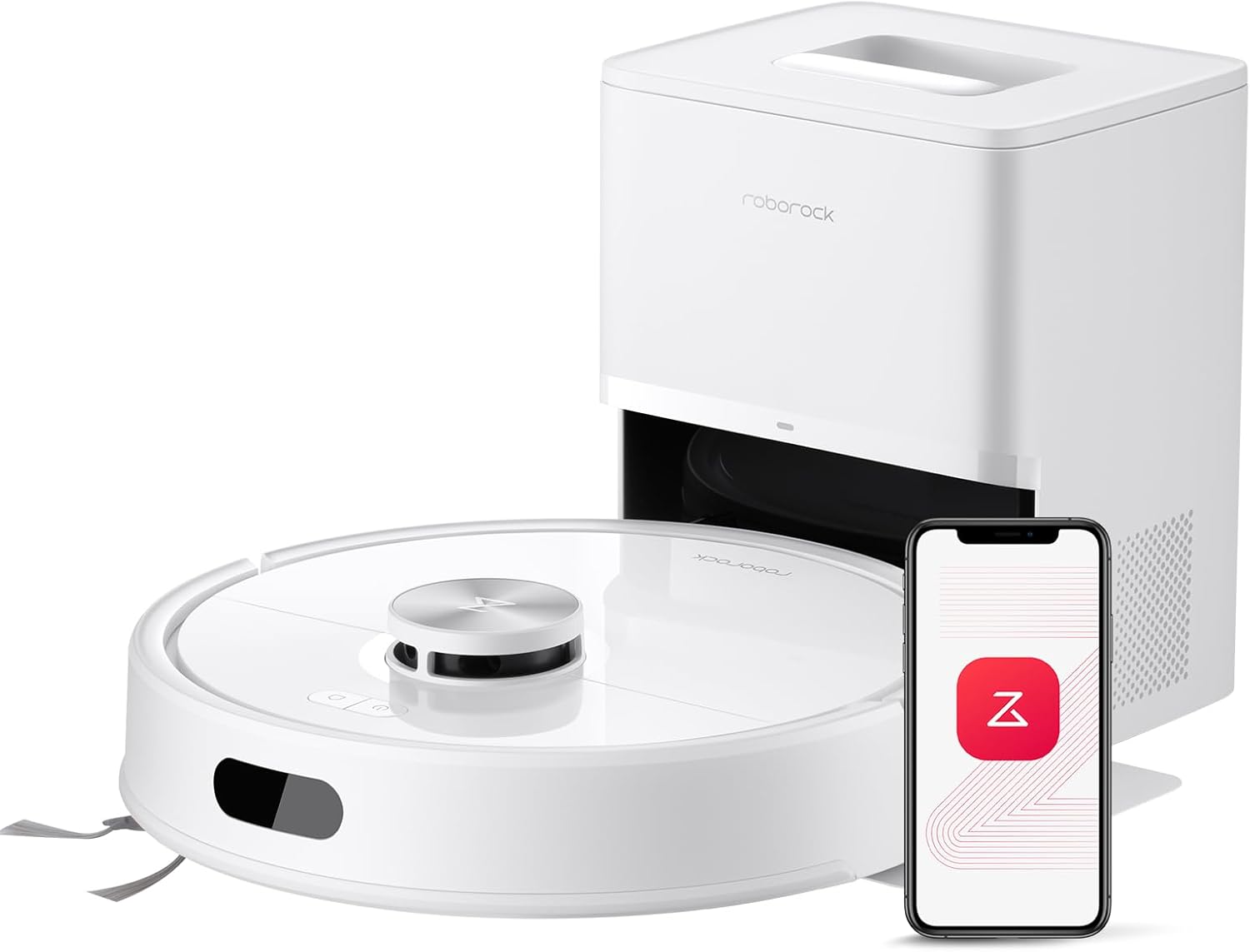
roborock Q7 M5+ Robot Vacuum and Mo…
From the brand Smarter Clean, Lighter Life. 𝟳-𝗪𝗲𝗲𝗸𝘀 𝗛𝗮𝗻𝗱𝘀 𝗙𝗿𝗲𝗲 𝗖𝗹𝗲𝗮𝗻𝗶𝗻𝗴: With a 2.7L sealed dust…
Recommended Next Reads
Useful guides selected from topics related to this article.
 Guides
How to Improve Wi-Fi Coverage Throughout Your Home
How to Improve Wi‑Fi Coverage Throughout Your Home Slow or patchy Wi‑Fi is one of the most common...
Read Guide
Guides
How to Improve Wi-Fi Coverage Throughout Your Home
How to Improve Wi‑Fi Coverage Throughout Your Home Slow or patchy Wi‑Fi is one of the most common...
Read Guide
 Guides
How to Introduce a New Pet to Your Home Gradually
How to Introduce a New Pet to Your Home Gradually Bringing a new pet into your home is...
Read Guide
Guides
How to Introduce a New Pet to Your Home Gradually
How to Introduce a New Pet to Your Home Gradually Bringing a new pet into your home is...
Read Guide
 Guides
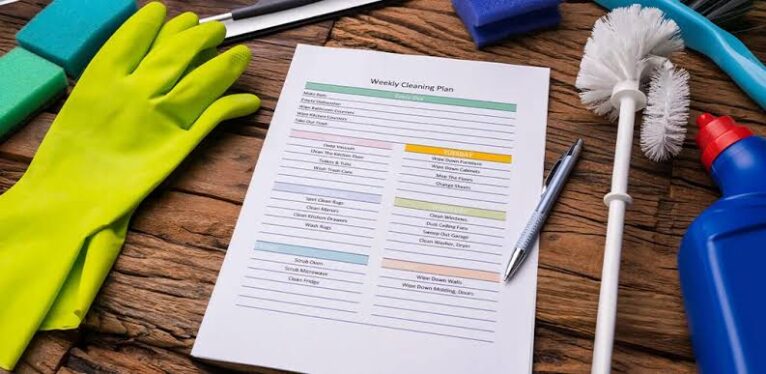
How to Create a Weekly Home Cleaning Routine You Can Maintain
How to Create a Weekly Home Cleaning Routine You Can Maintain Keeping a tidy home doesn’t have to...
Read Guide
Guides
How to Create a Weekly Home Cleaning Routine You Can Maintain
How to Create a Weekly Home Cleaning Routine You Can Maintain Keeping a tidy home doesn’t have to...
Read Guide