

How to Improve Wi‑Fi Coverage Throughout Your Home
Slow or patchy Wi‑Fi is one of the most common frustrations in modern homes. Whether you work from home, stream 4K video, or run a growing set of smart devices, weak coverage creates dropped calls, buffering and unreliable smart‑home behavior.
This guide walks through practical, tested steps to diagnose and fix coverage issues so your network works reliably where you need it. If you want to browse product options for upgrades or accessories while you work through these steps, check the PriceHunterPro product categories for related gear.
Map your Wi‑Fi coverage first
Before you buy anything, measure. Walk your home with a laptop, phone or tablet while running a speed‑test or Wi‑Fi analyzer app to note where signal drops or speeds fall off. Mark weak zones and test both 2.4 GHz and 5 GHz bands; 2.4 GHz reaches farther but is slower, 5 GHz is faster but shorter range.
If you prefer a larger screen for mapping, a device like the TECLAST T65 tablet makes it easier to run multiple tests and view heat‑map apps.
Place your router where it helps most
Router placement often solves more problems than buying new hardware. Put the router in a central, elevated location away from thick walls, metal cabinets and cordless phones. Avoid basements and closets when possible. Antennas should be oriented for the layout—vertical for single‑story homes, a mix for multi‑story layouts.
Think about where your smart devices live: smart bulbs, plugs and sensors benefit from line‑of‑sight or minimal wall partitions. For example, room clusters with many smart lights like Linkind Matter smart bulbs need consistent coverage if they’re spread across multiple rooms.
Reduce interference and choose the right band
Microwaves, baby monitors, Bluetooth speakers, and neighboring Wi‑Fi networks all compete on 2.4 GHz. Move routers and devices away from known interferers and switch your router to the least congested channel—tools and apps can show channel occupancy.
If you use wireless audio devices—like portable or Bluetooth speakers—keep them clear of the router during diagnosis, as these can share spectrum and create transient interference; for instance, devices similar to this Bluetooth speaker can cause local 2.4 GHz activity when active.
Upgrade or expand: routers, mesh, and extenders
If your router is several years old or you have a large or oddly shaped home, upgrading will help. Look for dual‑band (2.4/5 GHz) or tri‑band routers, and consider mesh Wi‑Fi systems that place multiple nodes around the house to create a single, seamless network.
Mesh systems are particularly useful where multiple outdoor or perimeter devices—like a video doorbell—need reliable connections. Devices such as the REOLINK battery video doorbell benefit from stable, dual‑band coverage that mesh nodes can provide at the property perimeter.
Use wired backhaul and wired connections where it counts
Whenever possible, use Ethernet for bandwidth‑heavy or latency‑sensitive devices: desktop PCs, consoles, streaming boxes and gaming monitors. A wired connection is more consistent than Wi‑Fi and frees wireless capacity for mobile and IoT devices.
Cameras and indoor security devices such as the TP‑Link Tapo camera may still use Wi‑Fi, but placing the router or a mesh node closer or switching to wired NVR solutions reduces dropped streams.
Fine‑tune software: firmware, QoS and channel choices
Keep router firmware updated—manufacturers regularly patch performance and security issues. Enable QoS (Quality of Service) to prioritize work calls and streaming over background downloads. If your router supports band steering, enable it so devices choose the best frequency automatically.
For homes with many scheduled or latency‑sensitive smart devices (outdoor plugs, irrigation, alarms), managing firmware and priorities helps them behave predictably—especially for devices like Kasa outdoor smart plugs that activate at set times.
Practical placement tips for common problem rooms
Room‑by‑room fixes: kitchens often suffer due to large appliances—move the router or add a node to the adjacent room. Bedrooms with thick walls may need a small mesh node in a hall. Basements often require a node placed on the floor above with a downward signal path or a powerline adapter to extend connectivity without drilling.
When you’re testing placements, carry a charged device or a power bank to avoid interruptions during long walks; a portable charger with built‑in cables keeps your testing device live while you map coverage.
Troubleshooting checklist
- Run a full coverage sweep on both bands and mark weak spots.
- Move router to a central, elevated location; reorient antennas.
- Identify and remove or relocate major sources of interference.
- Update router firmware and enable QoS for priority traffic.
- Use wired Ethernet for high‑bandwidth devices where possible.
- Consider mesh Wi‑Fi or targeted access points for large/complex homes.
- Test again after each change to measure the impact.
FAQ
- How can I tell whether to upgrade my router or add a mesh system?
If your router is older than 3–4 years or you see weak signal in many separate areas, a modern router or mesh system will help; use coverage tests to decide whether multiple nodes are needed. - Is 5 GHz always better than 2.4 GHz?
5 GHz is faster and less congested but has shorter range. Use 5 GHz for streaming and gaming near nodes, and 2.4 GHz for distant IoT devices. - Do extenders slow down Wi‑Fi?
Basic extenders can halve throughput if they rebroadcast on the same channel without wired backhaul. Mesh systems designed with dedicated backhaul or wired backhaul avoid that issue. - Will upgrading my ISP speed improve weak Wi‑Fi?
No—ISP speed affects your internet link, not wireless coverage. Fix coverage and local network issues first; only upgrade ISP if you need more external bandwidth. - How do smart home devices affect network planning?
Many smart devices are low‑bandwidth but numerous; they add connections that increase network management needs. Placing nodes near device clusters and segmenting IoT on a guest SSID can improve stability.
Practical takeaway: start by mapping coverage and fixing placement and interference—those steps solve the majority of problems. If gaps remain, upgrade to a modern router or a mesh system and use wired connections for the heaviest devices. Repeat testing after each change to confirm improvement.
Products Featured in This Article

Bluetooth Speaker, 20W HD Sound, Po…
Product description The video showcases the product in use.The video guides you through product setup.The video…

TECLAST T65 13.4″ Android16 4…
From the brand TECLAST BRAND STORE Providing a pleasant user experience for customers is our main…
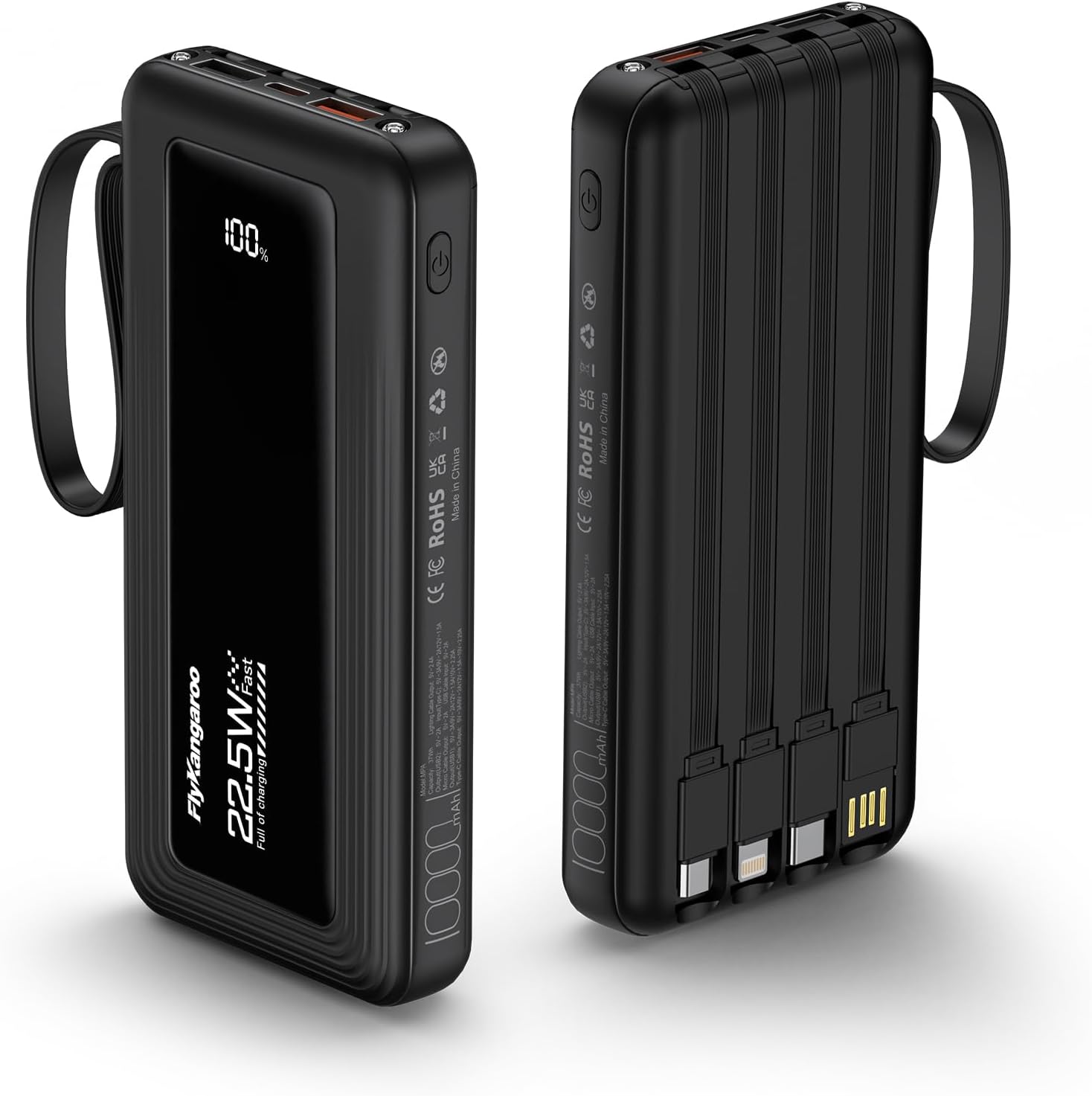
Portable Charger with Built in Cabl…
From the brand 22.5W Fast Charging Compact and Portable Built in Cables Portable Charger with Built-in…
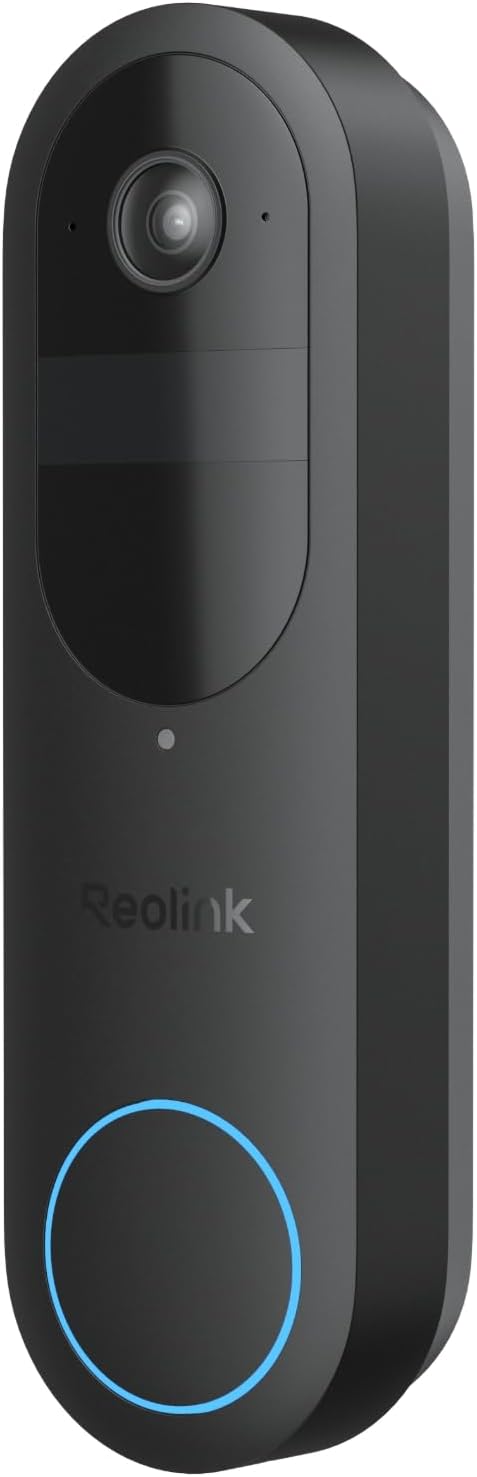
REOLINK Battery Video Doorbell (2nd…
From the brand New Release-Doorbell 2nd Gen Doorbell PoE & WiFi Camera Long-Lasting Protection, Less Charging…
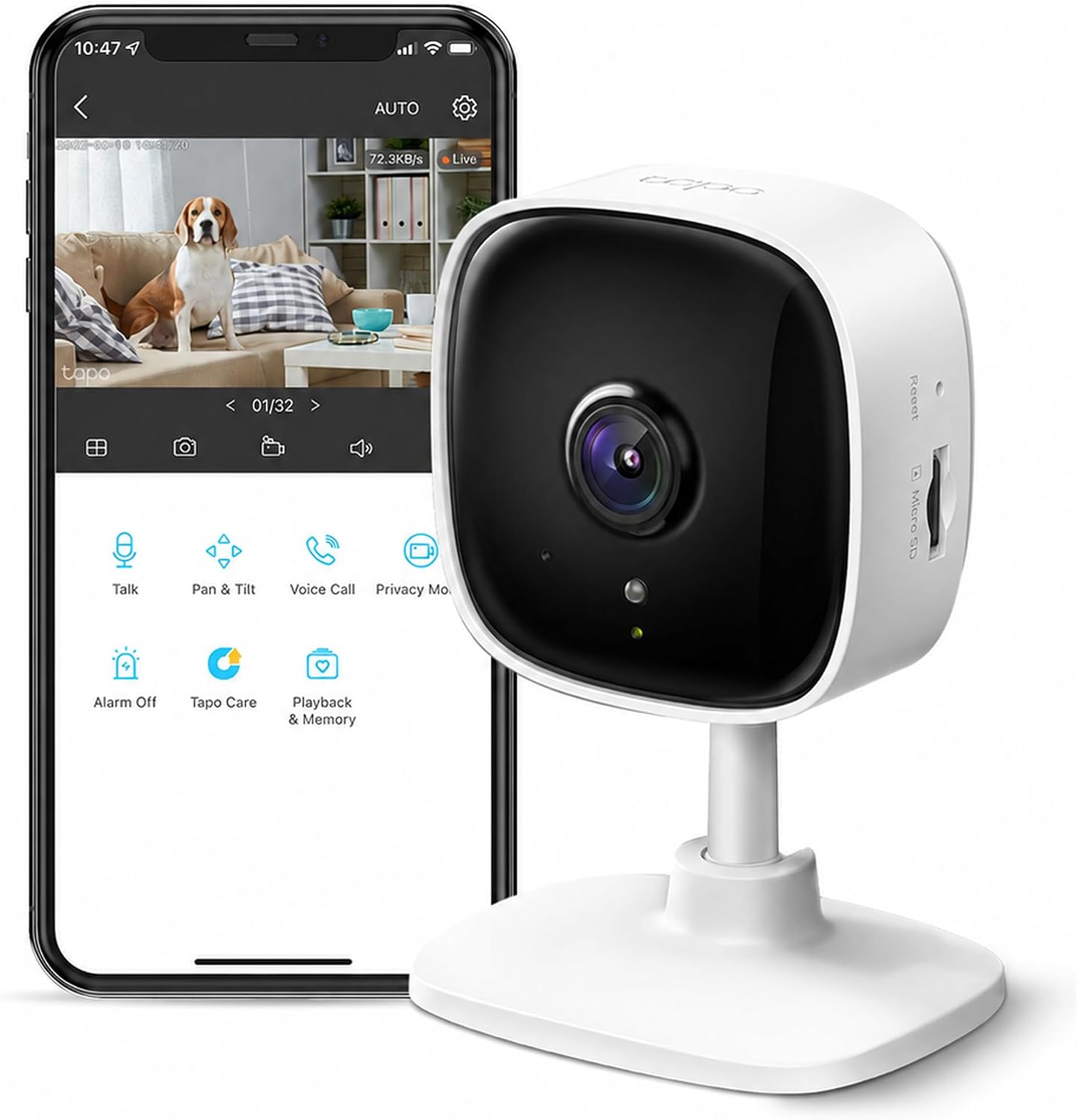
TP-Link Tapo 1080P Indoor Security …
Protect your home with the Tapo C100 smart indoor security camera Wi-Fi. Featuring crystal-clear 1080P high-definition…
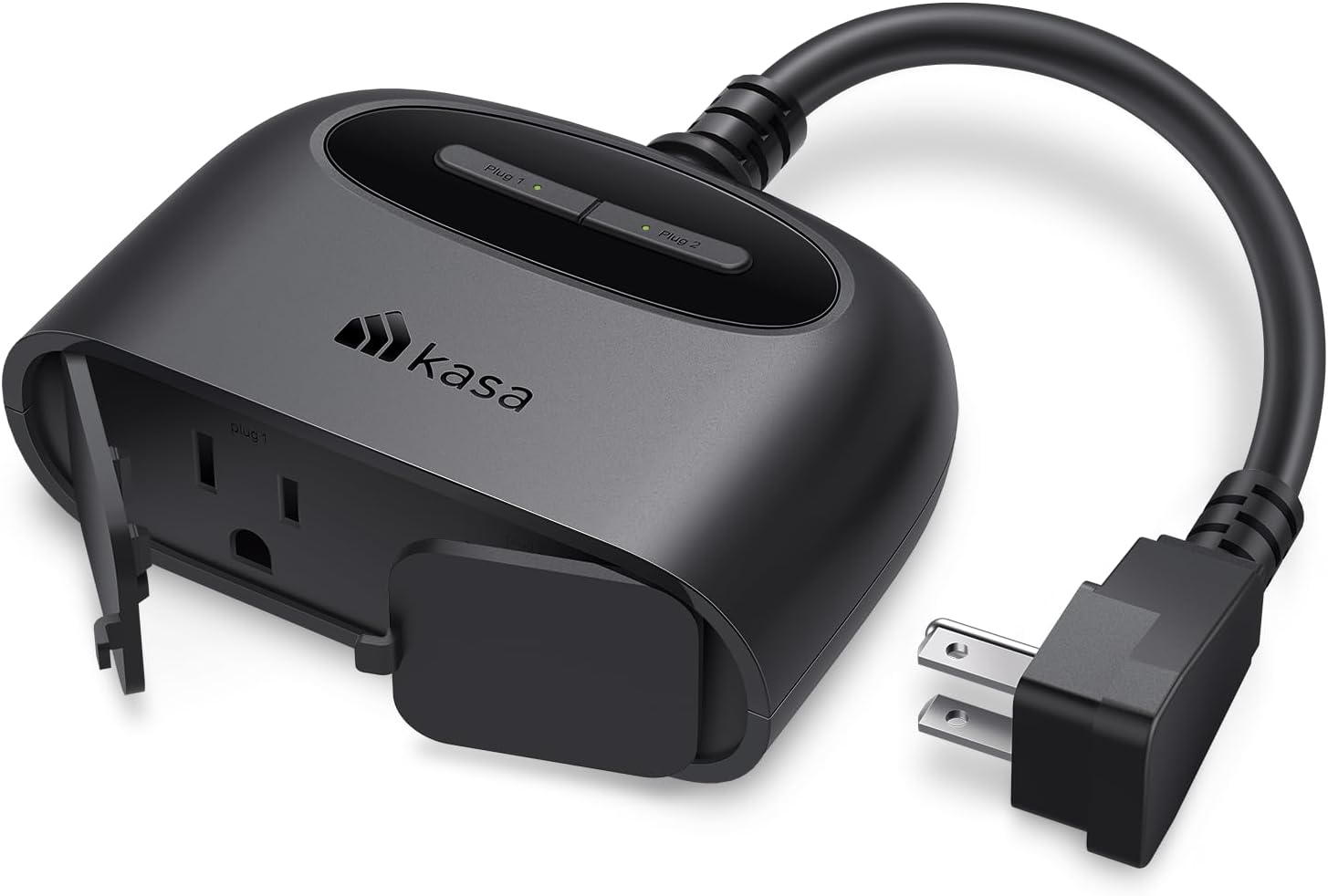
Kasa Outdoor Smart Plug, Smart Home…
Extend your Smart Home to the outdoors with the Kasa Smart Outdoor Plug EP40 with landscape…

Linkind Matter Smart Light Bulbs 5G…
From the brand Swipe Left to Learn More Linkind Smart Light Stick New Releases Linkind Smart…
Recommended Next Reads
Useful guides selected from topics related to this article.
 Guides
How to Create a Weekly Home Cleaning Routine You Can Maintain
How to Create a Weekly Home Cleaning Routine You Can Maintain Keeping a tidy home doesn’t have to...
Read Guide
Guides
How to Create a Weekly Home Cleaning Routine You Can Maintain
How to Create a Weekly Home Cleaning Routine You Can Maintain Keeping a tidy home doesn’t have to...
Read Guide
 Guides
How to Groom Your Dog at Home Without Causing Stress
How to Groom Your Dog at Home Without Causing Stress Grooming at home can save money and strengthen...
Read Guide
Guides
How to Groom Your Dog at Home Without Causing Stress
How to Groom Your Dog at Home Without Causing Stress Grooming at home can save money and strengthen...
Read Guide
 Guides
How to Create a Realistic Weekly Workout Routine at Home
How to Create a Realistic Weekly Workout Routine at Home Creating a weekly workout routine that fits your...
Read Guide
Guides
How to Create a Realistic Weekly Workout Routine at Home
How to Create a Realistic Weekly Workout Routine at Home Creating a weekly workout routine that fits your...
Read Guide