
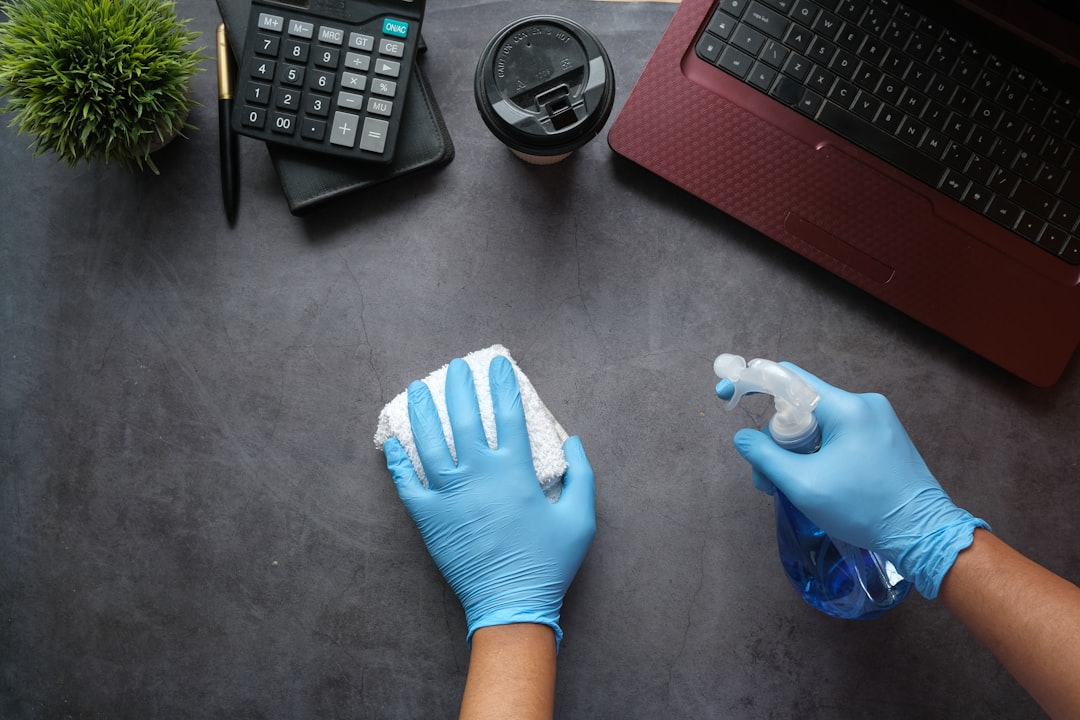
Keeping your computer, keyboard and screen clean is a small chore that protects your investment and improves daily comfort. Dust, oils and crumbs build up quickly, reducing cooling efficiency, causing sticky keys, and smudging displays. A short, regular cleaning routine prevents problems before they start.
Below is a practical, step-by-step guide you can follow safely at home. If you need replacement accessories or related gear, browse PriceHunterPro for options and deals.
Why routine cleaning matters
Dust inside a PC can insulate heat and clog fans, raising temperatures and shortening component life. Keyboards harbor oils and microbes, and screens with built-up grime reduce contrast and force you to increase brightness. Regular cleaning restores performance, extends life and improves hygiene.
Prepare: power down, unplug and work safely
Before you touch anything, shut down your computer, unplug power cables and disconnect peripherals. For battery-powered devices, remove batteries or let them drain to a safe level. Keep cables organized and avoid working on carpet (static risk).
If you need to charge a device before or after cleaning—especially portable gadgets—consider a compact power option like the Portable Charger with Built in Cables to avoid fumbling multiple adapters while cleaning.
Tools and safe cleaning supplies to have on hand
Use the right tools: microfiber cloths, compressed air (canned or an electric blower), cotton swabs, isopropyl alcohol (70% recommended), distilled water, small brushes (soft bristles) and a plastic pry tool for removing keycaps if necessary. Avoid paper towels, household glass cleaners with ammonia, and harsh solvents.
How to clean a keyboard—quick and deep methods
Start with a quick daily wipe: turn the keyboard upside down and gently shake out loose debris, then use compressed air between the rows. Wipe the surface with a barely-damp microfiber cloth and a 70/30 isopropyl alcohol solution for disinfecting high-touch areas.
For a deeper clean, remove keycaps (if your keyboard supports it), soak plastic keycaps in warm, soapy water, and dry thoroughly before reattaching. Use a soft brush or cotton swab dipped in isopropyl alcohol to clean the gaps and stabilizers. If you own a mechanical or gaming keyboard like the Redragon K521KS Wireless Gaming Keyboard, follow the manufacturer’s keycap-removal guidance to avoid damaging switches and stabilizers.
Cleaning mice and other peripherals
For mice, wipe the exterior with a microfiber cloth dampened with distilled water and a small amount of isopropyl alcohol for greasy spots. Use a cotton swab to remove grime from sensor openings and feet. If your mouse is rechargeable or wireless, remove batteries before cleaning removable parts. For specialized mice and ergonomic models—such as the Transformers Vertical Ergonomic Mouse—pay attention to seams and charging ports and avoid introducing moisture into buttons or ports.
Cleaning screens safely: monitors, laptops and tablets
Never spray liquid directly onto a screen. Use a clean microfiber cloth and spray distilled water or a screen-safe cleaner onto the cloth, then wipe in gentle, circular motions. For stubborn fingerprints, a 50/50 mix of distilled water and isopropyl alcohol is often effective—but avoid alcohol on anti-glare coatings unless the manufacturer approves it.
Large monitors and high-end displays require a delicate approach. If you own an ultra-wide gaming monitor such as the Samsung 34′ Odyssey G5, follow these steps: use only microfiber, apply minimal liquid to the cloth, and avoid pressing hard on the panel to prevent pressure damage and uniformity issues.
Cleaning laptops and tablets
Close the lid and use compressed air on vents and keyboard areas to remove dust. Carefully wipe the keyboard deck with a lightly dampened microfiber cloth, then go over the screen with distlled water on a microfiber cloth. For tablets and dedicated devices like the TECLAST T65 tablet, avoid abrasive cleaners and exercise extra caution around ports and speakers when using liquids.
Cleaning earbuds and headsets
Earbuds and headsets collect earwax and sweat; clean them after heavy use. Remove silicone tips and wash them in warm, soapy water; dry fully. Use a dry soft-bristled brush or a toothpick carefully to remove debris from mesh grilles. For wireless models, avoid soaking the electronics—wipe housings with a slightly damp microfiber cloth.
If you use true wireless or sport models, check the Wireless Earbuds category for replacement tips or case cleaning accessories. For large over-ear headsets, clean pads with a damp cloth and allow full drying before reuse—products like gaming headsets have specific cleaning recommendations similar to those for the HyperX Cloud Alpha.
Special tips: fans, vents and inside the case
Cleaning the inside of a desktop is about safety and static control. Work on a grounded surface, use compressed air in short bursts (fans held in place to prevent spinning), and avoid vacuuming directly inside the case. Focus on heatsinks, fan blades and dust filters. Clean or replace case filters on a regular schedule to reduce dust ingress.
Checklist: quick cleaning routine
- Power down and unplug everything.
- Shake out or blow debris from keyboard; use compressed air for tight spots.
- Wipe keyboard, mouse and surfaces with microfiber + 70% isopropyl alcohol (lightly damp).
- Wipe screens with microfiber + distilled water or screen-safe cleaner (no direct spraying).
- Remove and wash silicone ear tips; brush earbud grills gently.
- Vacuum or blow dust from vents and fans; hold fans still while using compressed air.
- Allow everything to dry completely before reconnecting.
When to seek professional help
If you detect liquid inside a device, a burning smell, power faults after cleaning, or if a device has warranty seals that would be voided by opening, stop and consult a professional repair service or the manufacturer. For complex laptop disassembly or motherboard-level dust removal, professional servicing is safer than DIY unless you have experience.
FAQ
-
Can I use rubbing alcohol on my screen?
Use isopropyl alcohol sparingly and only if the manufacturer approves. For most modern coatings, a 50/50 mix of distilled water and isopropyl alcohol is acceptable, but avoid strong ammonia-based glass cleaners.
-
How often should I deep clean my keyboard and PC?
Quick surface wipes weekly, compressed air and deeper keyboard cleaning monthly, and an internal dusting of desktops every 3–6 months depending on environment (pets and carpeting increase frequency).
-
Is compressed air safe for fans?
Yes if used correctly: hold fans in place and use short bursts from a distance to prevent overspinning and potential damage.
-
What if a key or port refuses to work after cleaning?
Power down immediately, let the device dry fully for 24–48 hours, and if the problem persists, seek professional diagnostics—do not continue powering a device that shows signs of liquid damage.
-
Can I sanitize my mouse and keyboard to kill germs?
Yes—use 70% isopropyl alcohol applied to a cloth (not directly sprayed) and wipe surfaces. Avoid excess moisture near connectors and openings.
Practical takeaway: set a simple routine—weekly quick wipes and monthly deeper attention—and always power down before cleaning. Small, consistent care keeps devices running cooler, looks better and reduces the chance of sticky keys or hardware faults.
Products Featured in This Article

TECLAST T65 13.4″ Android16 4…
From the brand TECLAST BRAND STORE Providing a pleasant user experience for customers is our main…
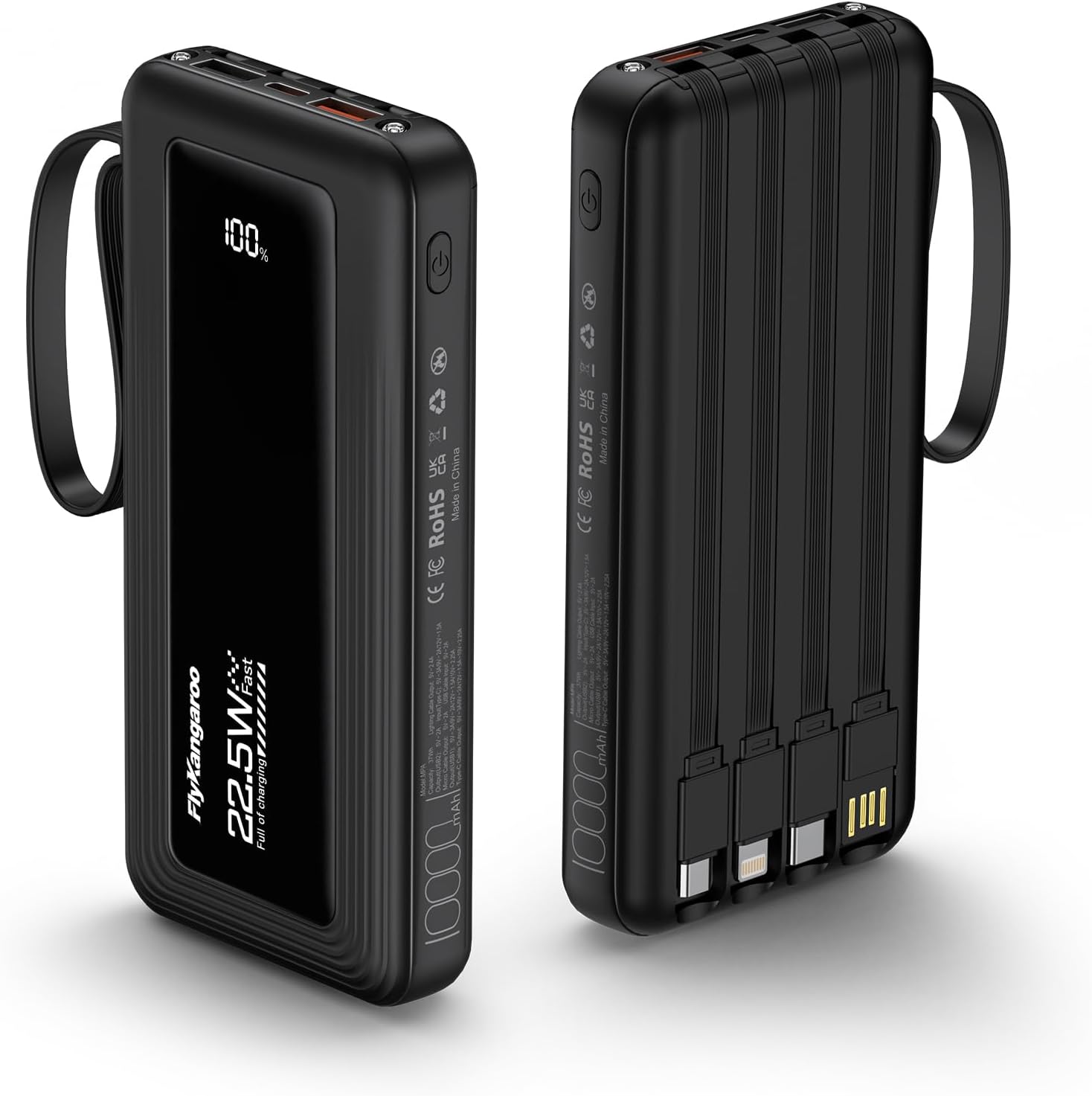
Portable Charger with Built in Cabl…
From the brand 22.5W Fast Charging Compact and Portable Built in Cables Portable Charger with Built-in…
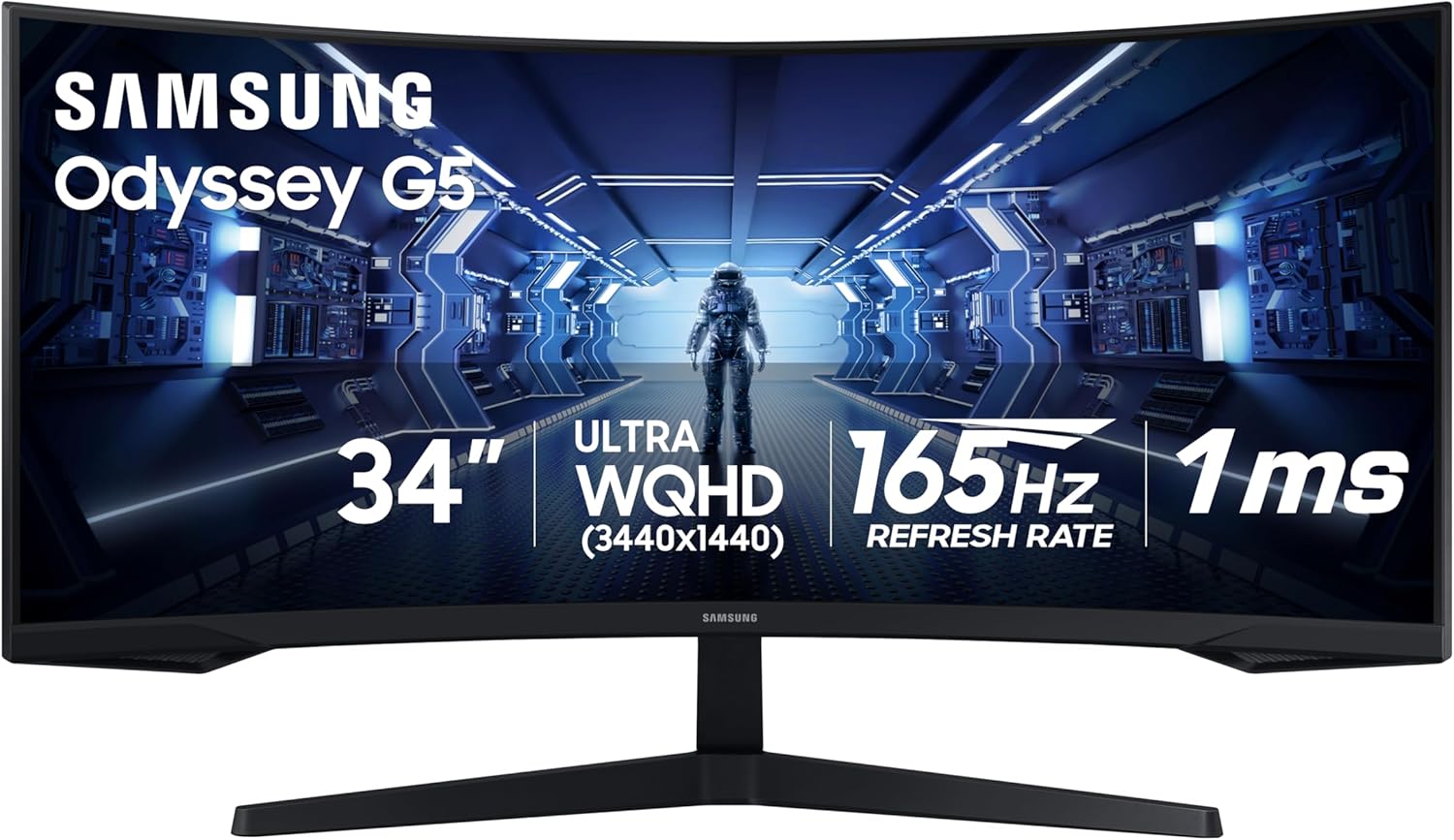
Samsung 34′ Odyssey G5 Ultra-…
The all-encompassing 1000R display fills every part of your peripheral vision and draws you right into…
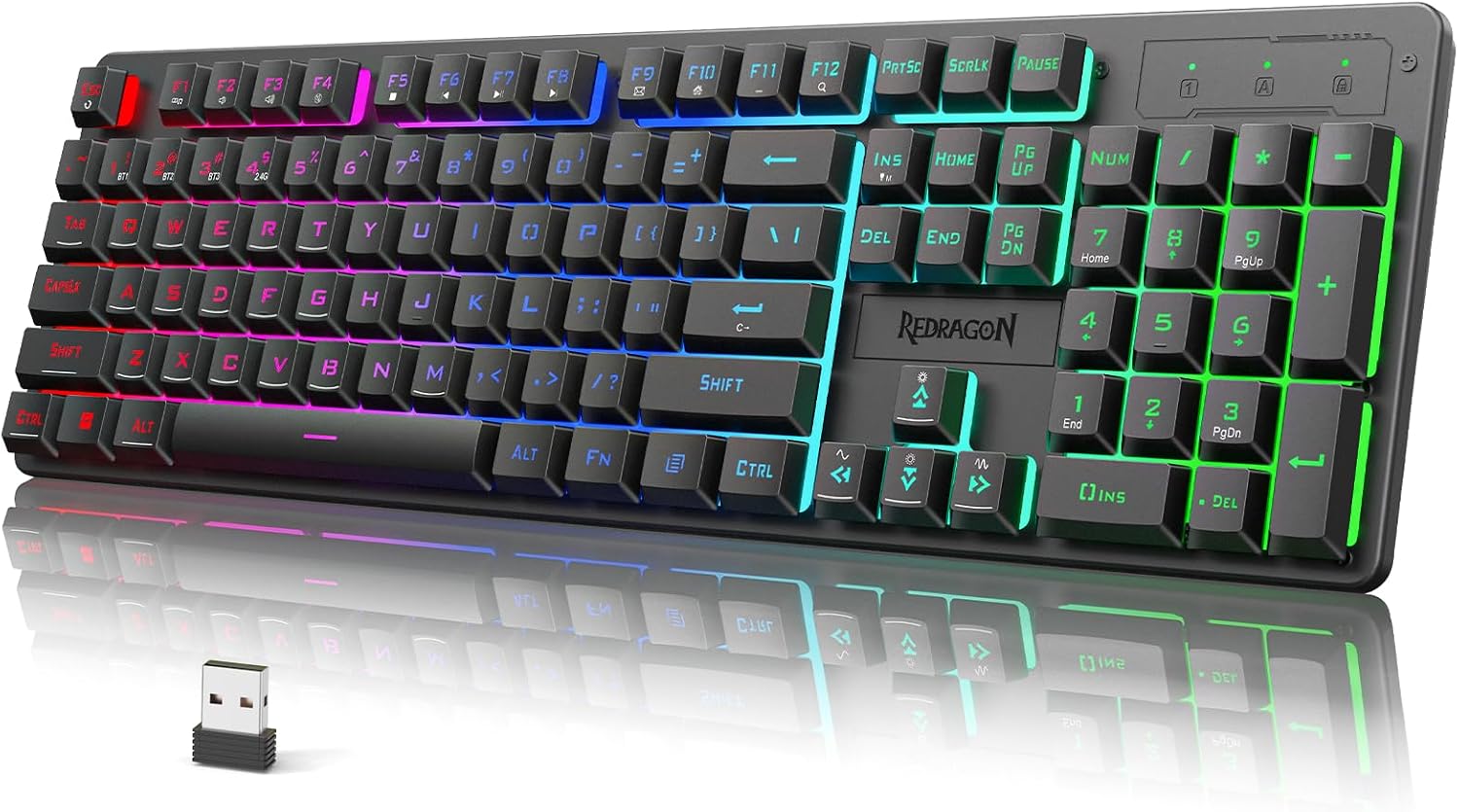
Redragon K521KS Wireless Gaming Key…
Product description 【Tri-Mode Connection & 4000 mAh Battery】The K521KS red dragon keyboard supports Bluetooth, 2.4GHz wireless,…
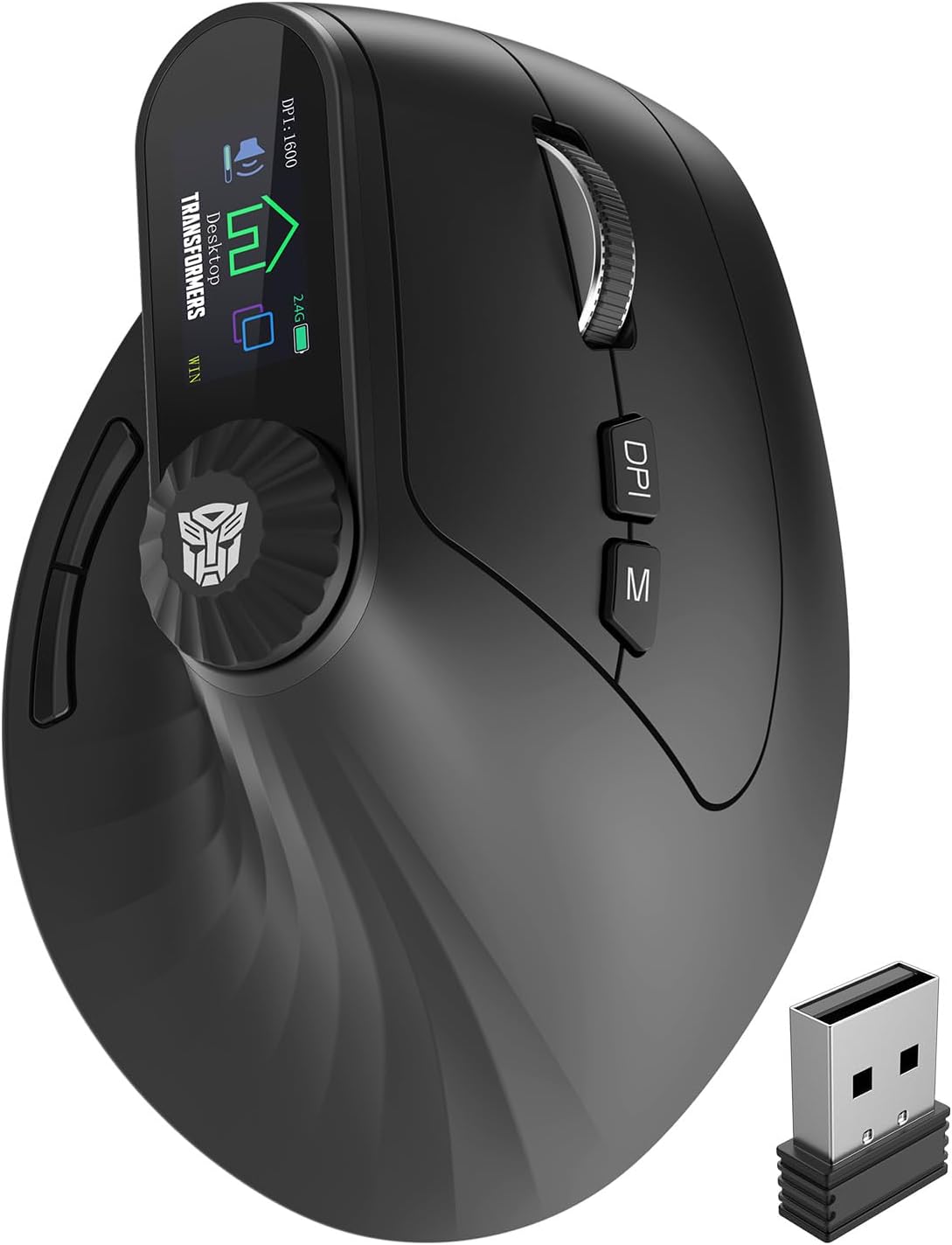
Transformers Vertical Ergonomic Mou…
Product description Transformers Ergonomic Rechargeable Mouse with LED Screen 3-Device Connectivity: 2.4 GHz + Dual Bluetooth…
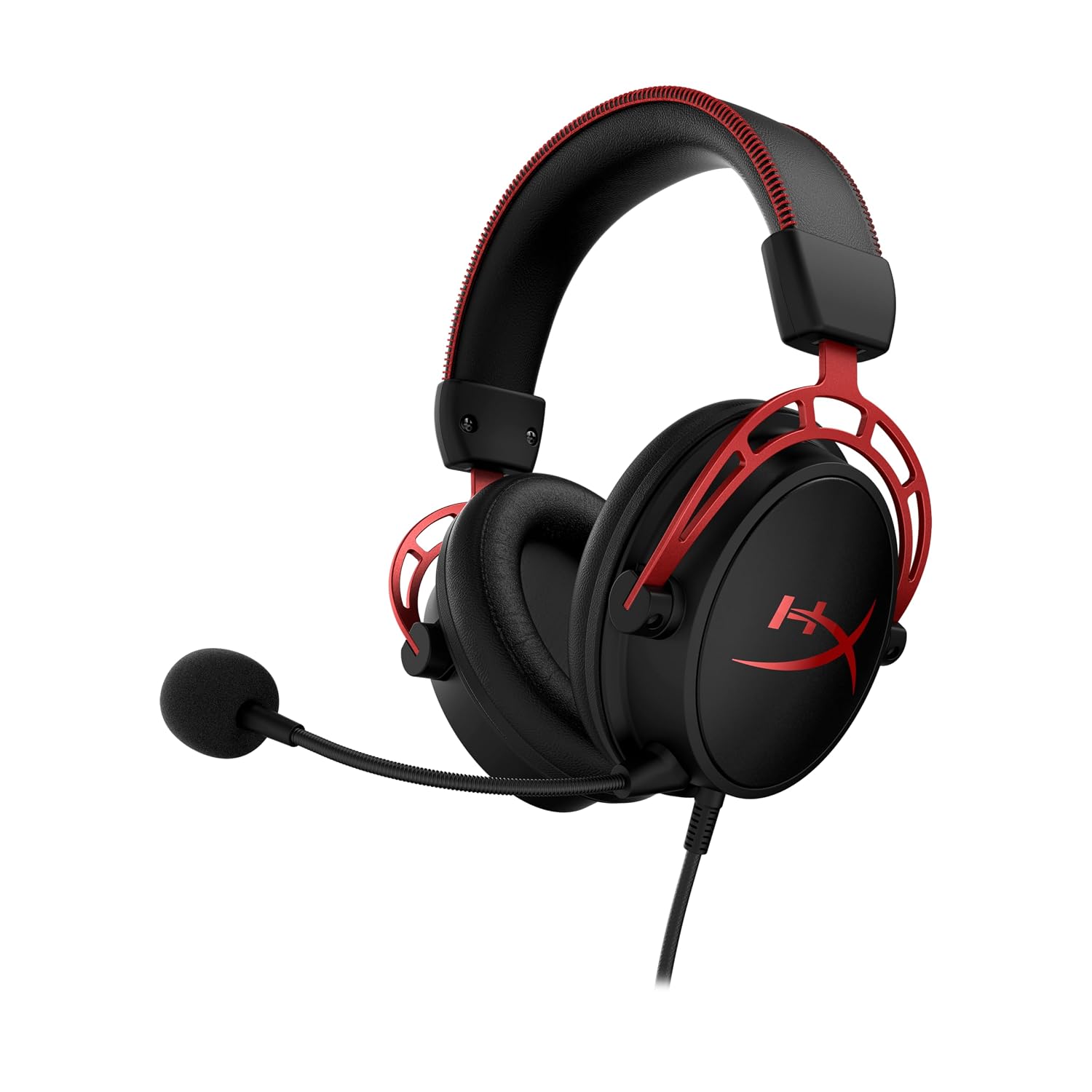
HyperX Cloud Alpha – Gaming H…
HyperXTM Cloud Alpha’s groundbreaking Dual Chamber Drivers design gives audio more distinction and clarity by reducing…
Recommended Next Reads
Useful guides selected from topics related to this article.
 Guides
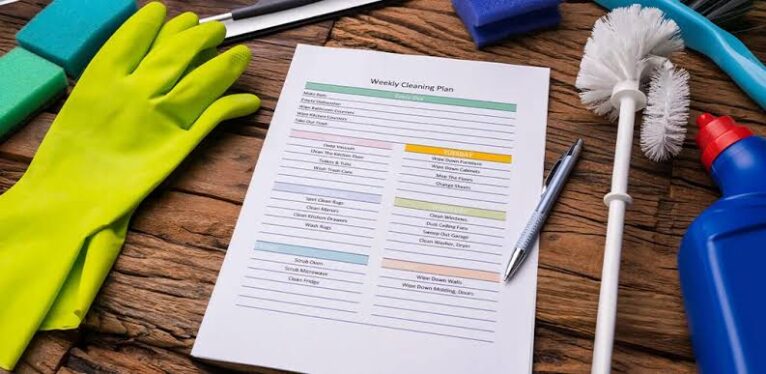
How to Create a Weekly Home Cleaning Routine You Can Maintain
How to Create a Weekly Home Cleaning Routine You Can Maintain Keeping a tidy home doesn’t have to...
Read Guide
Guides
How to Create a Weekly Home Cleaning Routine You Can Maintain
How to Create a Weekly Home Cleaning Routine You Can Maintain Keeping a tidy home doesn’t have to...
Read Guide
 Guides
How to Create a Realistic Weekly Workout Routine at Home
How to Create a Realistic Weekly Workout Routine at Home Creating a weekly workout routine that fits your...
Read Guide
Guides
How to Create a Realistic Weekly Workout Routine at Home
How to Create a Realistic Weekly Workout Routine at Home Creating a weekly workout routine that fits your...
Read Guide
 Guides
How to Groom Your Dog at Home Without Causing Stress
How to Groom Your Dog at Home Without Causing Stress Grooming at home can save money and strengthen...
Read Guide
Guides
How to Groom Your Dog at Home Without Causing Stress
How to Groom Your Dog at Home Without Causing Stress Grooming at home can save money and strengthen...
Read Guide